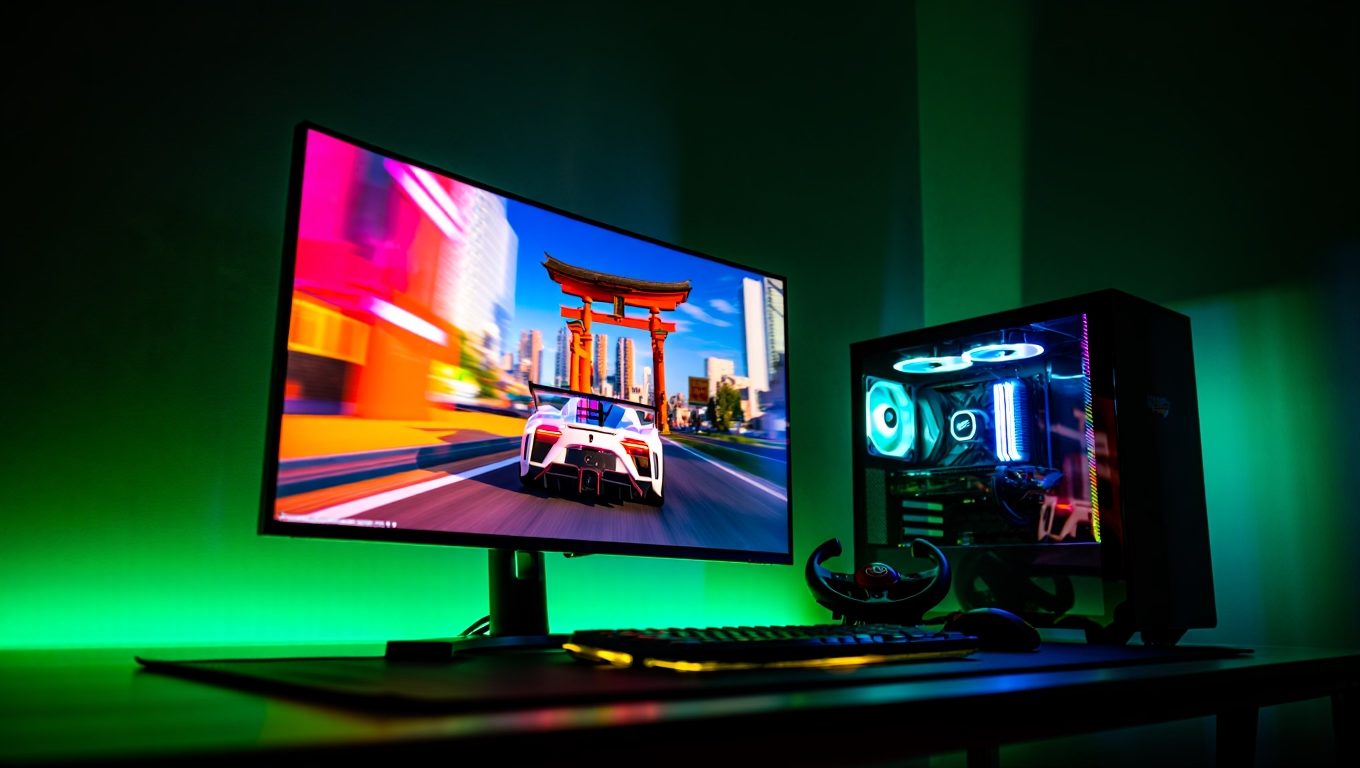
Stepping into the world of Forza Horizon 6 and its beautifully rendered Japanese landscape feels like the culmination of a decade of racing game evolution. The vibrant neon of the urban districts, the misty mountain passes, and the meticulously detailed tarmac : it is a visual feast. However, as any seasoned PC enthusiast knows, visual grandeur comes at a cost. The engine powering this experience is demanding, and without proper configuration, you might find yourself battling stuttering, dropped frames, or input latency: the enemy of every serious driver.
I have spent countless hours behind the wheel in racing simulators, and if there is one thing I’ve learned, it is that consistency is faster than raw power. You don’t need the most expensive rig on the planet to enjoy a fluid, responsive, and stunning experience in Japan; you just need to know how to talk to your hardware.
In this guide, we aren’t just going to list settings. We are going to deconstruct the Nvidia Control Panel and the game’s internal graphics engine to help you find that “golden ratio” between performance and fidelity. Whether you are aiming for a high refresh rate on a competitive monitor or pushing 4K resolution on a living room TV, these optimizations will ensure your ride through Japan remains smooth, immersive, and visually sharp.
In a Nutshell: The Performance Roadmap
If you are eager to get back to the road, here is the executive summary of our approach:
- The Golden Rule: Stability is king. We prioritize Frame Pacing and consistent FPS over maxing out every single toggle to “Ultra.”
- Nvidia Control Panel: This is the bedrock of your performance. Proper configuration here prevents your GPU from downclocking and ensures smooth communication between your card and the game.
- Graphics Hierarchy: Prioritize DLSS and Frame Generation for a massive performance boost, while sacrificing “Ultra” presets for “High” to claw back significant processing power.
- The Japan Variable: The map density in this title is high. Managing VRAM effectively is critical to avoiding micro-stuttering in dense urban areas.
- Evergreen Optimization: Always keep your graphics drivers updated, but apply the “two-day rule” : wait 48 hours after a release to ensure the community hasn’t flagged any critical bugs.
The Foundation: Nvidia Control Panel Optimization
Before we even touch the game, we need to address the driver level. The Nvidia Control Panel is often ignored, but it is where you can force your system to stop “thinking” about saving power and start focusing on rendering frames.
- Open the Nvidia Control Panel (Right-click your desktop).
- Navigate to Manage 3D Settings.
- Click on the Program Settings tab.
- Find Forza Horizon 6 in the drop-down menu (if it’s not there, click “Add” and locate the game’s executable file).
Recommended Settings for Stability:
- Anisotropic Filtering: Set to 16x. This is non-negotiable. It keeps textures on the road and in the environment looking sharp at acute angles, which is vital for seeing the track ahead. The performance cost is negligible on modern cards.
- Power Management Mode: Select Prefer Maximum Performance. This prevents your GPU from lowering its clock speed during minor frame drops, ensuring consistent delivery.
- Texture Filtering – Quality: Set to High Performance. Do not use “Quality” or “High Quality” if you are struggling with frame drops. This offers a clean, efficient look.
- Vertical Sync (V-Sync): Keep this Off. We want the game engine or your G-Sync/FreeSync module to handle the synchronization. Having it “On” in the Nvidia panel can introduce unnecessary input lag.
- Low Latency Mode: Set this to Ultra. This helps synchronize frame production with your mouse/controller input, which is essential for precise steering control in a high-speed racing environment.
In-Game Optimization: Mastering the Japan Map
The environment in Japan is dense. You have high-frequency geometry, foliage, and complex lighting systems. If you throw everything to “Ultra,” you will likely encounter VRAM bottlenecks, leading to “hitchy” gameplay.
The “Sweet Spot” Preset Strategy
Instead of blindly selecting the “High” or “Ultra” preset, we suggest a custom approach:
- Resolution Scale: Native (100%). Never drop this below native unless you are on a very weak GPU. If you need more frames, use upscaling technologies.
- DLSS (Deep Learning Super Sampling): This is your best friend. Set it to Quality mode. It uses AI to upscale the image, providing a picture that is near-native quality but with a massive jump in FPS. If you are still not hitting your frame target, Balanced mode is the next step.
- Ray Tracing: This is the “FPS killer.” While it makes reflections in puddles and on car bodies look realistic, it is incredibly demanding. For gameplay, set this to Off or Low. You won’t notice the difference when you are drifting at 150mph.
- Shadow Quality: Set to High. There is virtually no visual difference between High and Ultra during active gameplay, but the performance cost of Ultra is significant.
- Environment Texture Quality: Set to Ultra (if your GPU has 8GB+ of VRAM). This ensures that the beautiful Japanese roads and building facades remain sharp.
- Motion Blur: This is subjective. I prefer it Off or on Low for better clarity when cornering. High motion blur can mask the sharpness of your driving line.
Understanding the Hardware Bottleneck: CPU vs. GPU
Even if you have the best Nvidia settings, your experience is limited by your hardware chain. In an open-world racer like Forza Horizon 6, the game constantly streams assets from your storage to your RAM, then to your CPU, and finally to your GPU.
The CPU Role
If you notice that lowering your graphics settings doesn’t actually increase your FPS, you are likely experiencing a CPU bottleneck. This happens when your processor cannot prepare frames fast enough for the graphics card.
- The Fix: Close background applications (Discord, web browsers with dozens of tabs, game launchers) before booting up. Ensure your Windows Game Mode is enabled, as it prioritizes system resources for the game process.
The Memory (RAM) Role
Racing games rely heavily on high-speed memory. If you are running on 16GB of RAM or less, ensure you aren’t multitasking heavily. If you have 32GB, you are likely in the clear. However, always ensure your XMP/DOCP profiles are enabled in your BIOS. Many users run their RAM at default, slow speeds without realizing it, severely crippling their PC’s performance.
The “Human” Side of Racing: Why Latency Matters
We often talk about FPS as the ultimate metric, but Input Latency – the time between you pressing the gas or turning the wheel and the car reacting – is actually more important for your performance.
When you configure your Nvidia Control Panel and in-game settings, you are creating a “pipeline.” If that pipeline is too long (too many frames queued up), you will feel a “floaty” sensation in the steering. This is why we disabled V-Sync and enabled Low Latency Mode.
A car that feels “connected” to your hands allows you to push harder into corners, shave milliseconds off your lap times, and ultimately enjoy the game more. If you ever feel like the car is “sliding on ice” despite having grip, check your latency settings. It is often a sign of frame-time inconsistency.
Driver Etiquette: When to Update
There is a common pitfall in the PC community: “The Day-Zero Update.” When Nvidia releases a new graphics driver labeled for a specific game, many players rush to install it.
My advice as a long-time user: Be cautious.
Drivers are complex pieces of software. Sometimes, a “Game Ready” driver introduces unforeseen bugs, such as flickering textures or audio crackles. I recommend waiting 48 to 72 hours after a new driver release. Check community hubs, the Forza subreddit, or official forums. If the general consensus is positive, go ahead and update. If you see reports of crashes or visual glitches, wait for the hotfix.
The Psychology of the Drive: Why We Optimize
Why go through all this trouble? Why spend time tweaking toggles and reading technical guides?
Because the immersion is the point. When you are driving down a narrow, rain-slicked road in the Japanese countryside, with the cherry blossoms fluttering past, the technology should disappear. When your frames are consistent, when your input is snappy, and when the visuals are crisp, you aren’t playing a game anymore : you are driving.
Optimization is the act of removing friction between you and the experience. By taking the time to set up your Nvidia settings correctly, you aren’t just making the game run faster; you are making it feel more real. And in the end, that is why we play.
Conclusion: Take the Wheel
Optimizing Forza Horizon 6 is a journey, not a destination. Your hardware is unique, and while the settings provided above are the gold standard for mid-to-high-end systems, don’t be afraid to experiment. Use the in-game benchmark tool after every major change. Look at your min/max FPS and, more importantly, your average frame time.
If the game looks beautiful, runs smoothly, and feels responsive, you have succeeded. Keep your system clean, your drivers updated, and your eyes on the road. The streets of Japan are waiting for you, and now, you are ready to conquer them with precision.
FAQ: Frequently Asked Questions
Why do I experience micro-stuttering even when my FPS is high?
Micro-stuttering is usually caused by Frame Pacing issues. This means your GPU is producing frames at an inconsistent interval. This often happens if your CPU is overloaded or if your VRAM is maxed out. Try lowering your texture quality or shadow quality slightly to reduce the burden on your memory. Also, ensure your monitor’s refresh rate matches your game’s frame rate limit (e.g., locking to 60 or 120 FPS).
Is “Frame Generation” worth using?
Yes, absolutely, provided your hardware supports it. Frame Generation creates “in-between” frames using AI, which makes the game appear significantly smoother without demanding the full rendering power of your GPU. It can sometimes introduce a very slight increase in input latency, but for most racing scenarios, the visual fluidity is well worth the trade-off.
Can I run this game on a 4GB VRAM GPU?
You will struggle. Forza Horizon 6 is designed for modern hardware. If you are on an older card, you must set your textures to “Low” and resolution scale to 80-90% to avoid crashing. I highly recommend investigating DLSS or FSR (FidelityFX Super Resolution) if your card supports them to help regain some performance.
Does closing my browser actually improve gaming performance?
Yes. Modern web browsers are heavy users of system RAM and can often leverage your GPU for hardware acceleration. Having 20 tabs open while playing a demanding game forces your system to manage these resources in the background, which can cause subtle, annoying background “hiccups” or frame drops. Always close resource-heavy apps before launching the game.
What is the single most effective setting to change for performance?
If you have an RTX card, it is DLSS. If you do not, it is Shadow Quality combined with Ray Tracing. Disabling Ray Tracing alone usually recovers enough performance to make the game playable on most mid-range systems.
Sources & Further Reading
To keep your PC gaming knowledge sharp, I recommend these resources which have served me well over the years. They provide the most reliable technical analysis in the industry:
- Nvidia Knowledge Base – https://www.nvidia.com/en-us/geforce/news/
- The definitive source for driver release notes and technical breakdowns of new graphics technologies.
- Digital Foundry (via Eurogamer) – https://www.eurogamer.net/digitalfoundry
- The absolute benchmark for technical gaming analysis. Their “optimized settings” videos are essential for understanding how to get the best visual-to-performance ratio in any game.
- Forza Support – https://support.forzamotorsport.net/
- Always your first stop for official bug reports, known issues, and hardware compatibility lists.
- PCGamingWiki – https://www.pcgamingwiki.com/
- A volunteer-run, incredible resource for finding manual configuration fixes and hidden settings for almost every PC game in existence.