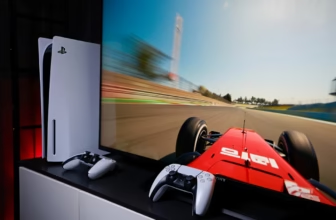
The neon-soaked streets of Japan are waiting. Whether you are drifting through the tight, technical corners of a mountain pass or tearing down the straightaways of Tokyo’s urban sprawl, Forza Horizon 6 demands more from your hardware than any title in the franchise before it. The sheer density of the environment, combined with the complex physics engine, creates a visual masterpiece, but it also creates a massive load on your system.
As someone who has spent hundreds of hours in the driver’s seat of various racing simulators and optimization guides, I’ve seen players struggle with dropped frames, stuttering visuals, and the temptation of “shortcuts” that often lead to regret. Today, we aren’t just talking about pushing pixels; we are talking about creating a seamless driving experience. We will look at the best Nvidia settings to stabilize your performance, how to maintain the integrity of your account, and why, in the world of competitive racing games, stability beats a “glitch” every single time.
In a Nutshell: Your Roadmap to Performance
If you are short on time, here is the essential breakdown of this guide:
- The Golden Rule: The game is beautiful, but demanding. Nvidia Control Panel tweaks and in-game graphic settings are the keys to unlocking a smooth framerate.
- The Performance Gap: Prioritize DLSS and Frame Generation if your hardware supports it to maintain high FPS without sacrificing visual fidelity.
- The Ban Risk: Shortcuts, specifically money glitches, are heavily policed. The risk of a permanent account ban far outweighs the short-term benefit of easy in-game currency.
- Evergreen Optimization: Always keep your graphics drivers updated, but check forums before the absolute “day-zero” update to ensure stability.
Understanding the Demand: Why Japan is Heavy on Hardware
The map in Forza Horizon 6 is a technical marvel. The density of objects—the reflective glass on skyscrapers, the dynamic weather systems, and the intricate foliage on the rural backroads—creates a massive workload for both your GPU and your CPU.
When driving through the city, your computer has to render thousands of unique assets simultaneously. If your settings are improperly configured, you will experience “frame pacing” issues, where the image doesn’t feel fluid even if your counter says you have high FPS. To fix this, we need to balance the load.
The Nvidia Optimization Guide: Dialing in Your Setup
Before you touch a single slider inside the game, we need to optimize the foundation: the Nvidia Control Panel. This is where the real “heavy lifting” happens.
1. The Global Settings
Right-click your desktop and open the Nvidia Control Panel. Navigate to Manage 3D Settings. Do not change the global settings unless you want it to affect every game you own. Instead, select Program Settings, choose Forza Horizon 6 from the list (or add it if it doesn’t appear), and apply these tweaks:
- Image Scaling: Keep this Off unless you are running at a native resolution higher than your monitor supports.
- Anisotropic Filtering: Set to 16x if you have a mid-to-high-end card. It makes textures look sharp at a distance, which is critical for those long, sweeping Japanese roads.
- Power Management Mode: Set to Prefer Maximum Performance. This ensures your GPU doesn’t downclock while you are in the middle of a high-speed drift.
- Texture Filtering – Quality: Set to High Performance. This provides the best balance between visual quality and frame stability.
- Vertical Sync (V-Sync): Keep this Off here. We will handle V-Sync inside the game or through G-Sync/FreeSync, which provides a much smoother experience.
2. In-Game Settings: The Sweet Spot
Once you are inside the game, navigate to the Video/Graphics menu. The goal here is to hit that “sweet spot” where the game looks like a next-gen title but runs like a professional racing sim.
- Resolution Scale: Keep at 100% (Native). Avoid scaling below this, or the game will look blurry—not ideal for spotting upcoming hairpins.
- DLSS / FSR: If you have an RTX card, turn DLSS on to Quality Mode. This is the single biggest performance boost you can get. If you are struggling, Balanced mode is a viable fallback.
- Ray Tracing: This is the “FPS Killer.” It looks incredible in Photo Mode, but while driving at 150mph, you won’t notice the reflections on your hood. Turn it Off or set it to Low to save a significant chunk of processing power.
- Shadow Quality: Set to High. You don’t need Ultra. Ultra carries a massive performance tax for a negligible visual gain during gameplay.
- Environment Texture Quality: Set to Ultra if you have at least 8GB of VRAM. This is essential for the sharp, detailed Japanese architecture and tarmac textures.
The Temptation of “Fast” Gains: Glitches and Bans
We’ve all seen the videos. “Get 10 Million Credits in 5 Minutes!” they scream. In the racing game community, the allure of the money glitch is a tale as old as the genre itself. However, as a senior writer who values the integrity of the ecosystem, I need to be clear: avoid them.
Developers have become significantly more sophisticated in their anti-cheat and anti-exploit measures. Using a glitch to artificially inflate your bank balance is often tracked server-side. I have spoken with players who have invested hundreds of hours into their accounts, only to receive a permanent ban because they got impatient and used a glitch to buy a rare car.
The Forza Horizon economy is designed to be earned. The joy of the game lies in the progression—taking that starter car and tuning it up, winning your first street race, and slowly building your collection. When you bypass that, you aren’t just risking a ban; you are robbing yourself of the very gameplay loop that makes the title rewarding. If you want to earn credits efficiently, stick to seasonal challenges, Horizon Arcade events, and high-reward online races.
Why Your Drivers Matter (And When to Update)
Your graphics drivers are the bridge between your hardware and the game code. Nvidia frequently releases “Game Ready Drivers” specifically optimized for major titles.
However, a word of advice from the trenches: don’t jump on a driver the second it drops. Often, brand-new drivers can introduce unexpected bugs—like flickering lights or audio glitches—that weren’t present in the previous version. My personal strategy is to wait 48 hours. Check the official Nvidia forums or the Forza subreddit. If the community is reporting smooth sailing, then update. If they are reporting crashes, stick with your current, stable version.
The Human Element: Managing Your PC’s Health
Optimization isn’t just about settings; it’s about the physical environment of your PC.
- Temperature Management: Racing games are stressful for your CPU and GPU. If your PC is overheating, it will “throttle” (slow down) to protect itself, leading to stuttering. Ensure your fans are clean and your airflow is unobstructed.
- Background Processes: Before you launch the game, close your web browser. Chrome, in particular, is a memory hog. You want your RAM dedicated to rendering those Japanese mountain passes, not to a dozen open tabs.
- The “Clean” Boot: If you find yourself having persistent issues, perform a clean restart of your PC before your gaming session. It clears out the temporary cache files that can clog up system performance over long periods.
Conclusion: The Long Road Ahead
Optimizing Forza Horizon 6 is about finding the balance between the visual spectacle of the Japanese landscape and the technical requirements of your rig. By fine-tuning your Nvidia settings, avoiding the temptation of account-threatening glitches, and maintaining your system’s health, you ensure that your experience remains focused on what truly matters: the drive.
There is no “magic setting” that turns a low-end PC into a high-end beast, but there is a refined configuration that allows you to enjoy the best the game has to offer. Take the time to tweak your setup, practice your lines, and I’ll see you on the streets of Japan.
FAQ: Frequently Asked Questions
Troubleshooting and Optimization
Why is my game stuttering even though I have high FPS?
This is usually caused by frame pacing issues or inconsistent refresh rates. Ensure your monitor’s refresh rate matches your in-game settings. If you have a G-Sync or FreeSync monitor, make sure it is enabled in both the Nvidia Control Panel and your monitor’s OSD (On-Screen Display). Also, try capping your frame rate at 60 or 120 FPS to keep the delivery of frames steady.
Does using DLSS make the game look worse?
In “Quality” mode, the difference between native resolution and DLSS is virtually imperceptible to the human eye while you are moving at high speeds. It uses AI to reconstruct the image, and in modern titles, it is highly optimized. It is almost always better to use DLSS and keep your frame rate high than to struggle with native resolution and low frame rates.
I am worried about getting banned. Are my “legal” mods safe?
Generally, cosmetic mods or HUD tweaks that don’t alter the game’s economy or physics are usually left alone. However, any mod that affects how the game calculates your speed, credit earnings, or car performance is a massive risk. If you are concerned, the safest path is to play the game vanilla.
How often should I check for driver updates?
You don’t need to check daily. I recommend checking the GeForce Experience app or the official Nvidia website once every two weeks, or immediately before a major game update drops. As mentioned, wait a few days after a new driver release to ensure the community hasn’t found major bugs.
What is the most demanding setting in the game?
Without a doubt, Ray Tracing and high-resolution shadows are the biggest resource hogs. If you are struggling with performance, these are the first two settings you should lower or disable. They provide the least amount of visual impact during high-speed gameplay compared to the amount of processing power they consume.
Sources & Further Reading
For those who want to dive deeper into hardware benchmarking and the technical side of gaming performance:
- Nvidia Official Knowledge Base – https://www.nvidia.com/en-us/geforce/news/
- The primary source for driver release notes and official optimization guides.
- Digital Foundry – https://www.eurogamer.net/digitalfoundry
- The gold standard for technical analysis. Their breakdown of graphic settings and engine performance is essential reading for any PC enthusiast.
- Forza Support Portal – https://support.forzamotorsport.net/
- Always check the official support page for known issues, bug status, and official guidelines on fair play and account safety.
- PCGamingWiki – https://www.pcgamingwiki.com/
- A fantastic community-driven resource that covers hidden settings, configuration file tweaks, and fixes for common technical hurdles in PC games.